With ARMA, you have the opportunity to make your courses fit your students’ needs and your learning style. It’s important to keep in mind the features that the digital milieu offers, especially with ARMA, which was made in this environment. Beyond the immedicacy that online resources bring, it is important to consider the ways in which link, tabs, and other details that are expected with browsers now enhance teaching. As you become more familiar with ARMA’s scores, articles, and commentaries, you will know which the ones that work best with your students. You will soon move beyond the two-dimensions of a printed text to the multi-dimensional world that ARMA offers.
Getting Started
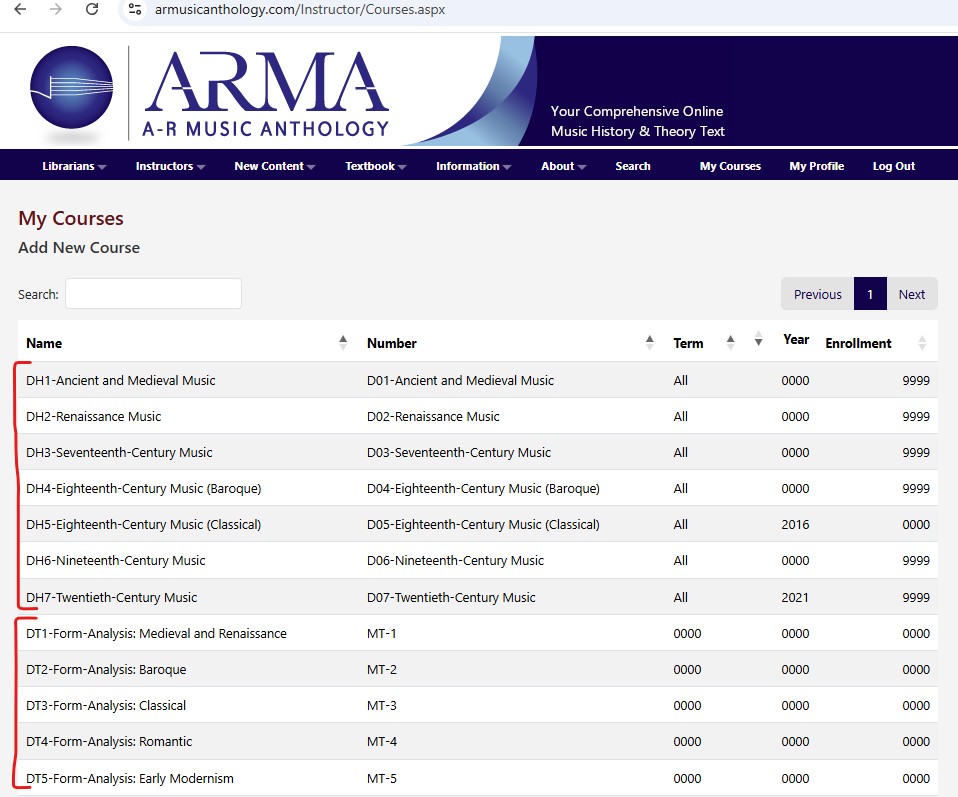
It’s easy to get started. Your instructor login takes you to your courses, and you can start from there. For immediate assistance, though, you can always contact ARMA to set up a virtual meeting. Yet much information is available at the ARMA site to get you started right way. In fact, when you use your login, ARMA opens your courses, which include the pre-set courses we’ve made for you.
Pre-Set Courses As Models
ARMA’s pre-set courses are models. The “default” courses in ARMA include seven for music history and five for music theory. You can review the courses as model for yours or even adopt them for your students. It’s your choice to use the pre-set course packs or to make your custom courses right away.
Make New Courses Easily
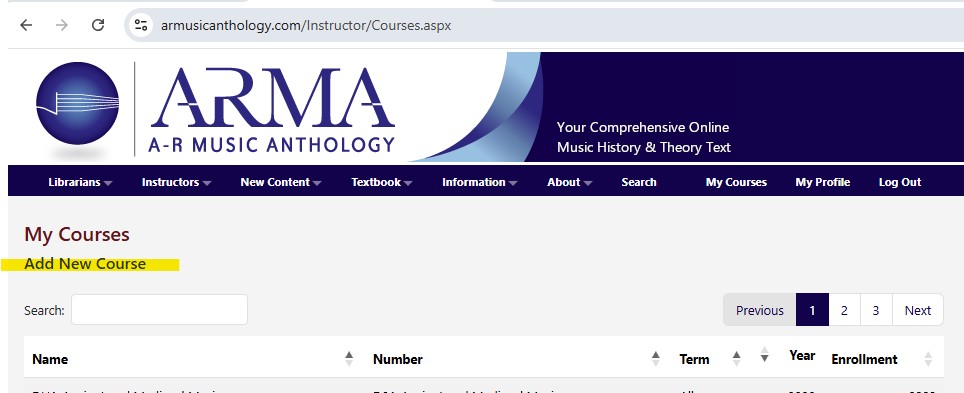
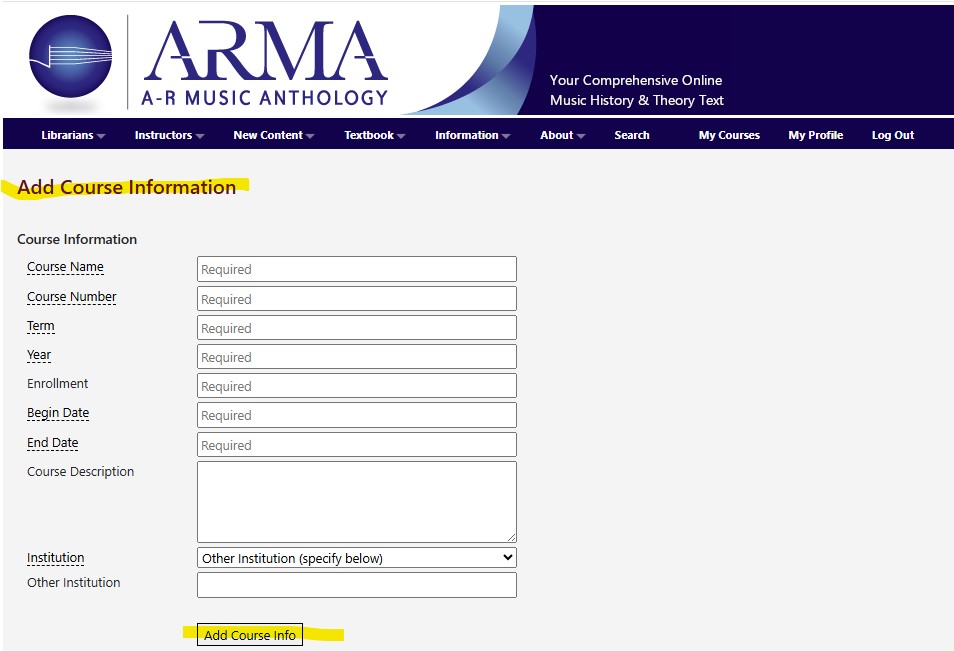
Your instructor login opens to your course page, where you can make your courses. Start by clicking “Add New Course” and follow the prompts. As you proceed, keep in mind that you always have the ability to revise the content. If the course title changes or its descriptions needs an update, you can always revise the information in ARMA.
Selecting and Organizing Content
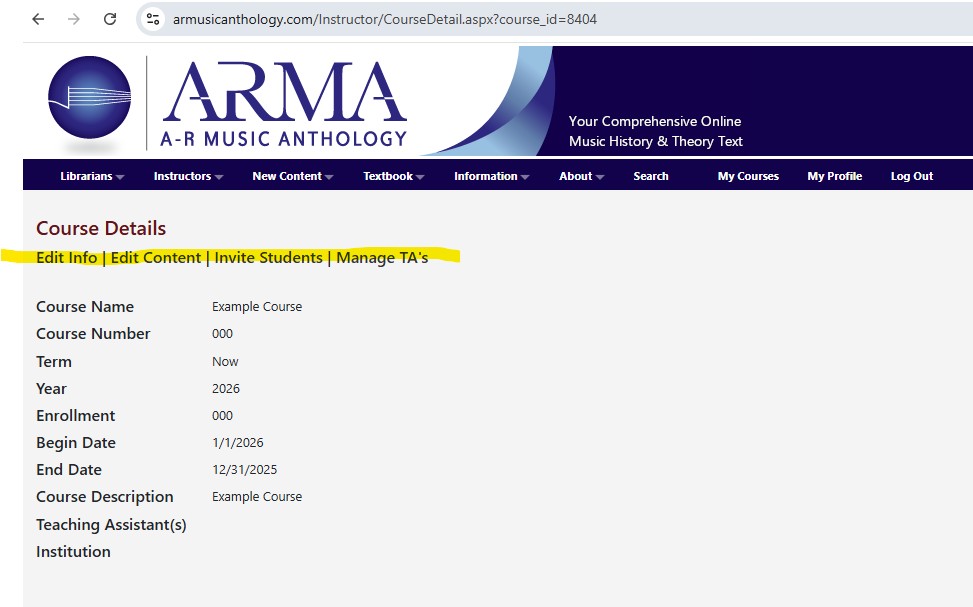
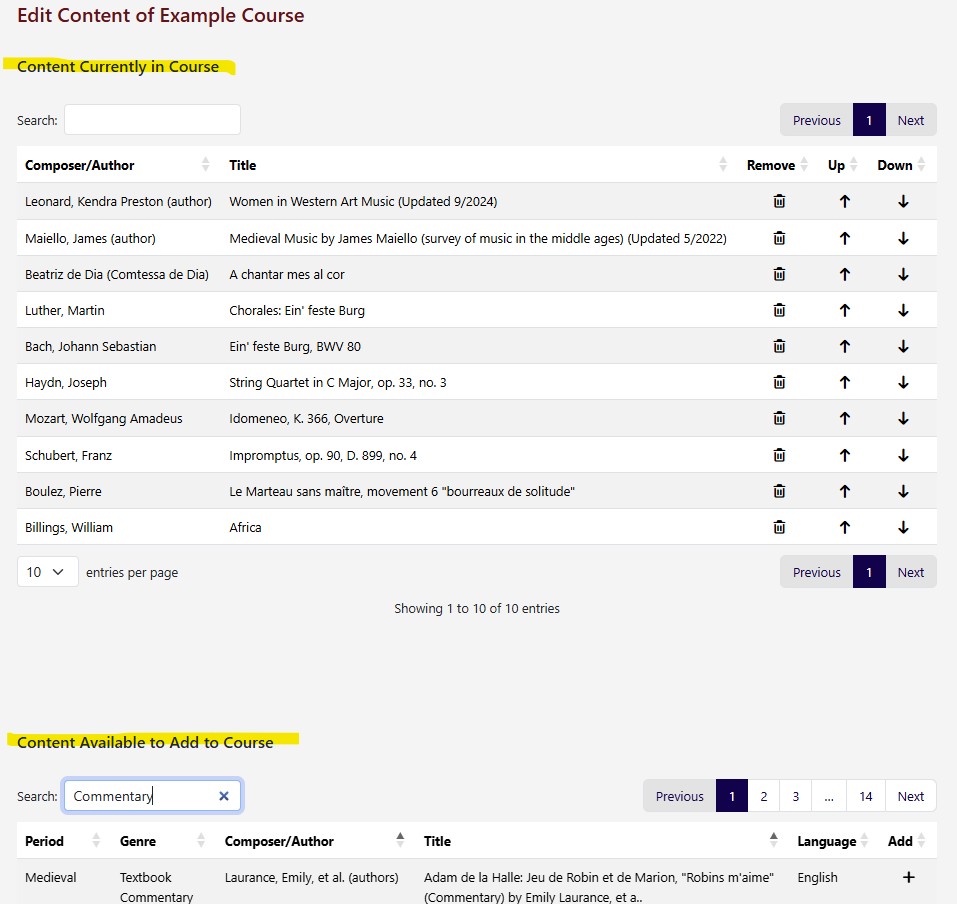
After adding the course name and several description items (which you can revise by using the “Edit Course” tab, the content button lets you search ARMA for all the items you need. When you use this tab, the screen opens to a search bar for you to find the materials you want. When you see the search results and know what you need, click the plus-side (“+”) to add it to your course. (At this point you may want to keep a previous syllabus handy or even a list of music you ant to use.) The items you add to your course will appear on the upper part of the screen, and you can use the arrows adjacent the items to move them where you want. (If you want to remove an item, you can always use the delete icon. Please know that deleting it is for your course — you won’t delete it from ARMA.) The course saves automatically, so don’t worry about having to save your courses manually. ARMA remembers your last choices, so that you can always pick up where you left off.
Preview Your Courses
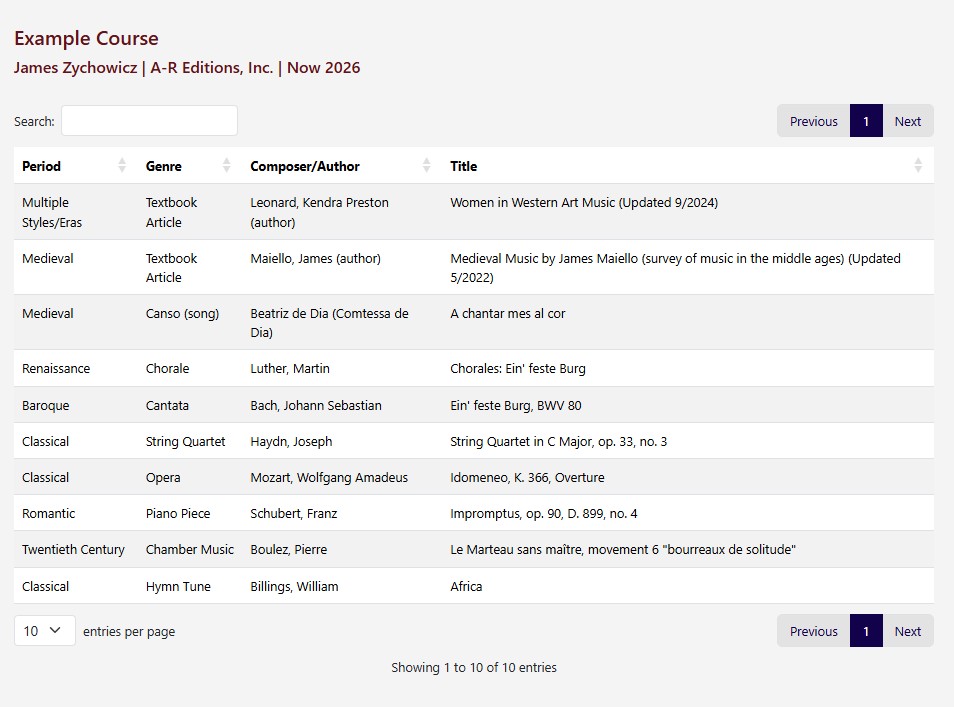
To preview your courses, click “My Courses” for a list that will include all the default music history and music theory courses, along with the custom courses you made. Click on the name of the course you want to preview to see its content and the order in which they appear.
You can also request a student login, if you like.
Inviting Students
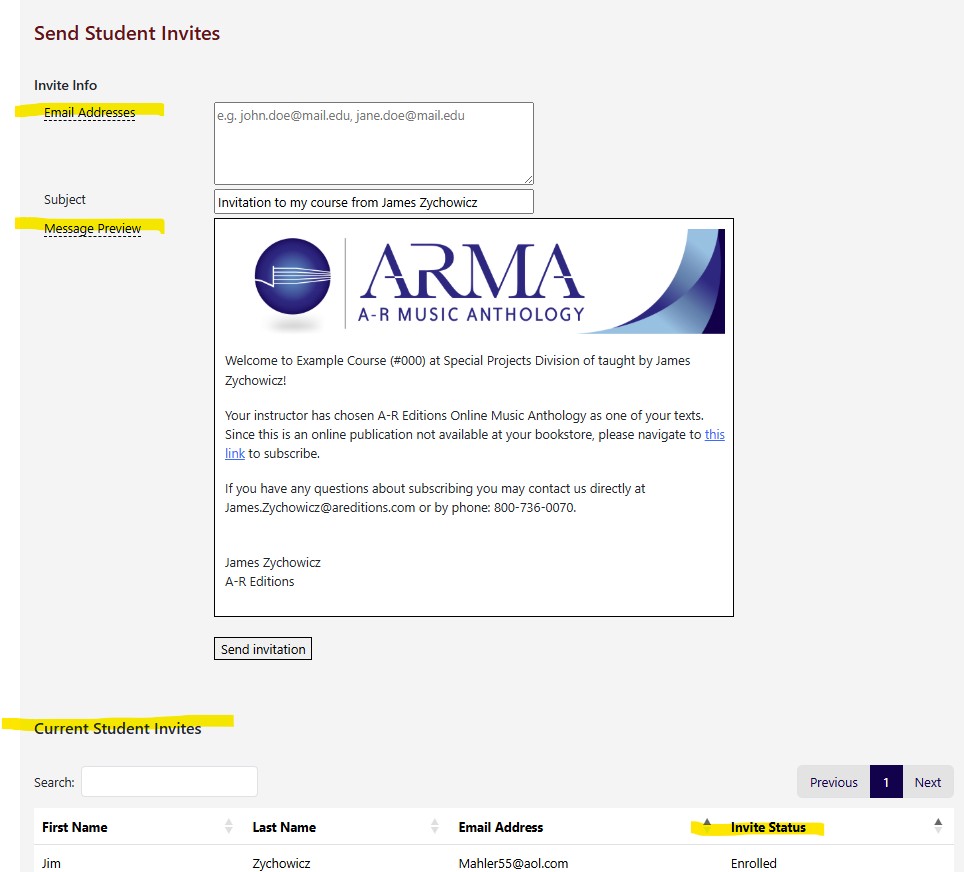
After your course if ready, you can invite your students to it directly from ARMA. Use the Invite Students page to
Create the message they will receive
Upload students’ email addresses
Send the message to the students’ email addressees
If you do not have all the addresses you can return to this page whenever you like to send more.
The page also lets your see the addresses and the status of the invitation: Sent messages will have “invited” next to them, and students who subscribe to your course will change to “enrolled.”
Adding TAs
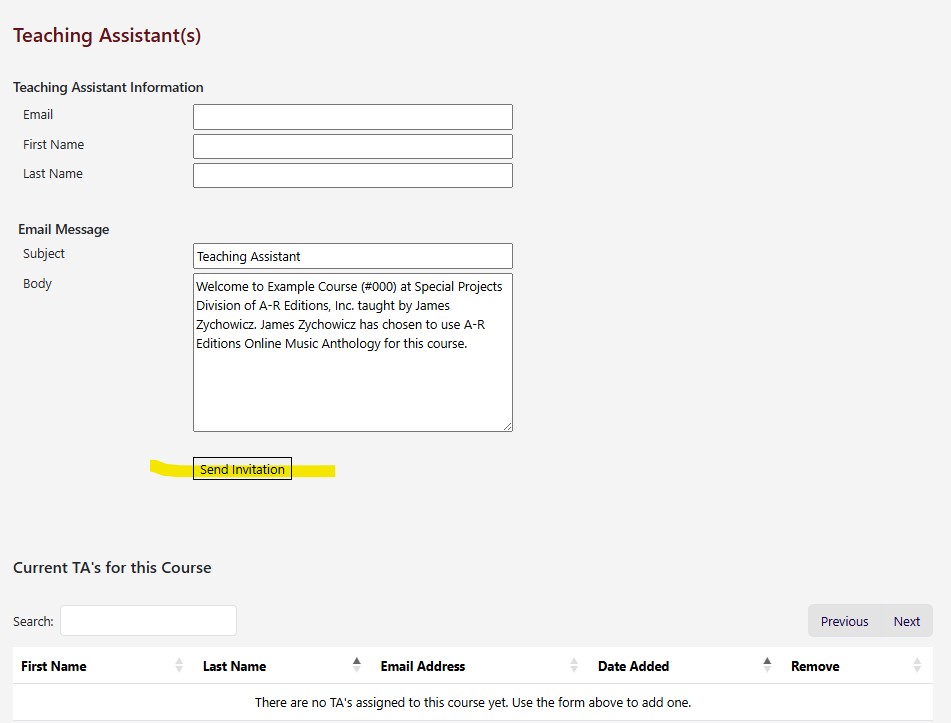
You can add TA the same way as you invited students. Please click “Manage TAs” for the page that lets you prepare your message, enter TAs’ email addresses, and send the invitation to the TAs. TAs receive complimentary access to your courses as soon as you invite them. Unlike print, they do not have to wait for the copy to arrive, since ARMA’s digital environment gives immediate reesults. Please know, too, that TAs lack the functionality to change your courses. Only you can change the items and their organization in your courses.
Revising Courses
You can always edit your courses so that they reflect your latest thoughts. Use your login to update any information, including the course title, description, or other details and, most importantly, the content. If you find that your students need more materials, you can always add items to your courses, and your course update immediately. Likewise, if you need to remove or reorganize the items in your courses, you can edit the content whenever you like.
Try Out ARMA!
The best way to proceed is to use ARMA. Go ahead and make a course. If ARMA is relatively new or unfamiliar to your school, you can always show your planned course to your students before you send the invitations to the entire class. You are now the expert who can take your students to the course you made for them! It’s a wonderful and rewarding leap from the bound book to the online course, and we’re glad you are moving forward with ARMA!